6 Best Cross-Platform File-Sharing Apps in 2026
The best app depends on whether your devices are nearby, share a local network, use different operating systems, or need to communicate across locations. This guide compares six distinct workflows.
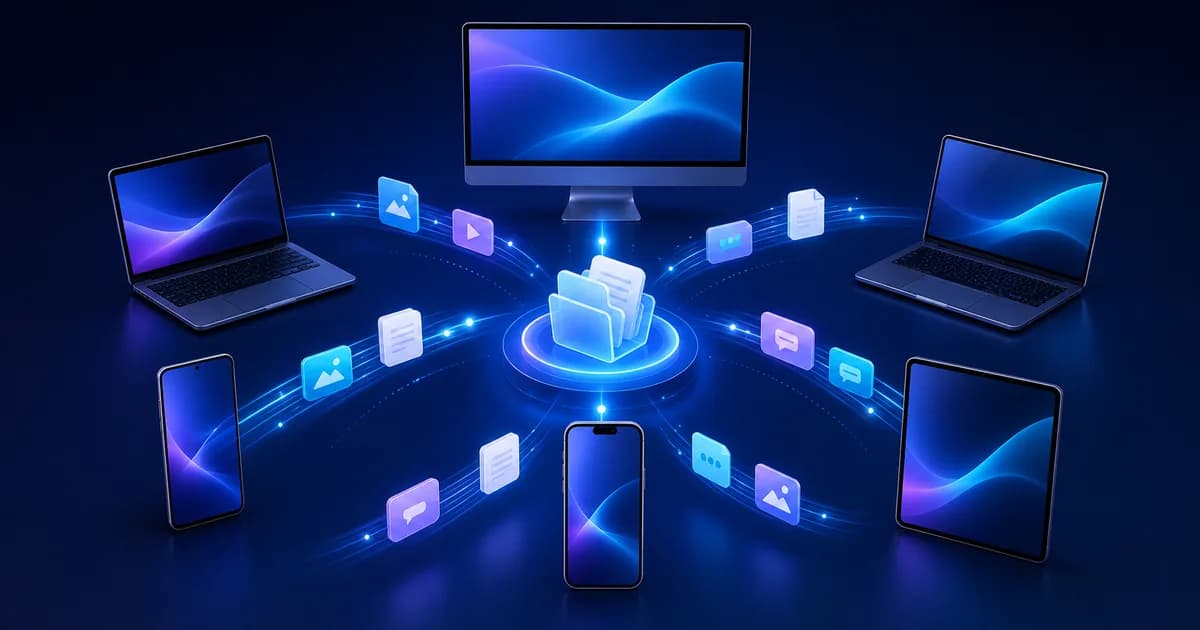
The short answer
- Choose TapSend for recurring transfers among your own supported devices when they may use different networks.
- Choose LocalSend for nearby, account-free transfers on one local network.
- Choose PairDrop when a modern browser and room or pairing workflow are more convenient than installing an app.
- Quick Share is focused on nearby Android and Windows transfers; KDE Connect adds device-integration features beyond file sending.
“Cross-platform” can describe very different products. One app may support five operating systems but work only on the same local network. Another may use a browser on almost any device but require both browser tabs to remain open. A cloud-backed account app can reach devices on different networks but cannot work offline.
This article owns the multi-product evaluation intent. It does not replace the definition and product explanation on the cross-platform file-sharing landing page. We evaluated each option by official platform information, connection model, recipient workflow, account requirement, and practical limitations.
There is no universal winner. Start with your actual device pair, distance, network, and privacy requirements, then choose the workflow that fits those constraints.
How we evaluated cross-platform file-sharing apps
- Current platform and browser support stated by the product
- Nearby, same-network, or across-network delivery requirements
- Account, installation, pairing, room, or key requirements
- Support for recurring personal-device workflows
- Security language taken from official documentation
- Limits and tradeoffs without unsupported speed rankings
Cross-platform app comparison
| App | Platform focus | Connection model | Account |
|---|---|---|---|
| TapSend | Windows, macOS, Linux, Android, iPhone, iPad | Cloud-backed named devices | Required |
| LocalSend | Windows, macOS, Linux, Android, iOS | Same local network | No |
| PairDrop | Modern web browsers | WebRTC, rooms, and pairing | No central account |
| Send Anywhere | Desktop, mobile, and web options | Keys, links, or device methods | Method-dependent |
| KDE Connect | Desktop and mobile integration | Paired devices on a network | No central account |
| Quick Share | Android and Windows | Nearby Wi-Fi/Bluetooth workflow | Optional for basic use |
App 1
TapSend: best for your own devices across networks
Best for: A recurring named-device workflow across Windows, macOS, Linux, Android, iPhone, and iPad
TapSend connects supported devices through one account. Install it, sign in on each device, assign recognizable names, select files, pasted text, or links, then choose the recipient. The devices do not need to be nearby or share Wi-Fi, but both need internet access.
Delivery is cloud-backed and protected in transit with HTTPS/TLS. TapSend does not claim peer-to-peer or end-to-end encrypted delivery. Plan-based file-size, storage, history, and usage allowances apply.
This model is strongest when you regularly move content among your own devices. Start with the Android-to-Windows, Windows-to-iPhone, or Mac-to-Windows guide.
Strengths
- • One named-device list across six supported platforms
- • Works across different networks and locations
- • Files, pasted text, and links in one workflow
Considerations
- • Requires internet access and a TapSend account
- • Subject to the current plan’s allowances
- • Designed for your own registered devices, not anonymous nearby recipients
App 2
LocalSend: best for nearby offline local-network transfers
Best for: Account-free transfers between devices sharing one trusted local network
LocalSend’s official site lists Windows, macOS, Linux, Android, and iOS support. It transfers over the local network without requiring an account or cloud-routed delivery. That makes it a strong fit when devices are nearby and can see one another on the same network.
The same design becomes a limitation when devices are in different places, use isolated guest Wi-Fi, or cannot discover peers. Compare the two models on the TapSend vs LocalSend page.
Strengths
- • No account or central login
- • Broad desktop and mobile platform coverage
- • Local-network workflow that can operate without internet-routed delivery
Considerations
- • Devices generally need the same reachable local network
- • Network isolation or firewall rules can block discovery
- • Not designed to reach a device in another location
App 3
PairDrop: best for browser-based transfers
Best for: People who prefer a modern browser, temporary rooms, or persistent pairing
PairDrop runs in a modern browser and uses WebRTC-based connections. Its official repository documents local-network discovery, persistent device pairing, and temporary public rooms that can connect devices outside one local network.
A browser workflow reduces installation friction, but both sides need a compatible, active browser context and the correct room, pairing, or visible peer. Read the PairDrop alternative page for a focused comparison with TapSend.
Strengths
- • Works through modern browsers on many platforms
- • No central user account required
- • Supports rooms and persistent pairing in addition to local discovery
Considerations
- • Depends on browser compatibility and active sessions
- • The recipient model differs from an account-owned device list
- • Network conditions can require relay infrastructure
App 4
Send Anywhere: best for keys and share links
Best for: One-time delivery using a temporary key, link, or supported device method
Send Anywhere supports several sending methods rather than one universal flow. Its help center documents six-digit keys, share links, and device selection, with different expiry, account, and delivery behavior depending on the method.
This flexibility can be useful for one-time recipients. It also means users should understand which method they chose instead of treating every transfer as identical. See the TapSend vs Send Anywhere comparison.
Strengths
- • Multiple recipient methods including keys and links
- • Desktop, mobile, and web access options
- • Useful for one-time exchanges outside your own device list
Considerations
- • Expiry and account behavior vary by method
- • Keys or links must be communicated to the recipient
- • The workflow is less uniform than one named-device model
App 5
KDE Connect: best for broader phone-and-desktop integration
Best for: Users who want notifications, clipboard, remote input, and commands alongside file sharing
KDE Connect is more than a file-transfer utility. Its official site describes device integration features such as shared notifications, clipboard access, remote input, commands, and file or link sharing. Devices pair and communicate through the network.
That broader feature set is valuable for people who want phone and desktop integration. It may be more than someone needs for a simple send-and-receive workflow. Review the focused KDE Connect alternative page.
Strengths
- • File sharing plus device-integration features
- • No central TapSend-style account required
- • Open-source ecosystem with desktop and mobile clients
Considerations
- • Requires pairing and compatible network access
- • Platform feature parity can vary
- • More complex than a dedicated named-device transfer flow
How to choose a cross-platform file-sharing app
Different locations
Same local network
No installation
Recurring personal devices
Android and Windows nearby
More than file transfer
Frequently asked questions
What is the best file-sharing app for all platforms?
No app is best for every situation. TapSend fits recurring transfers among your own supported devices across networks. LocalSend fits nearby same-network transfers without an account. PairDrop fits browser workflows, while other apps serve narrower device pairs or recipient models.
Do cross-platform file-sharing apps require the same Wi-Fi?
Some do and some do not. Local-network tools generally require the same reachable network. TapSend is cloud-backed, so each device needs internet access but the devices can use different networks.
Which cross-platform file-sharing apps work without an account?
LocalSend and PairDrop do not require a central user account for their core workflows. KDE Connect pairs devices without a central TapSend-style account. Requirements can differ by feature and product version.
Which file-sharing apps support Linux?
TapSend and LocalSend list Linux among their supported desktop platforms. KDE Connect originated in the KDE ecosystem and also supports other platforms. Browser-based PairDrop can work through a compatible modern browser.
Are cross-platform file-sharing apps secure?
Security depends on the product and workflow. Review official encryption, account, network, link, and recipient-verification documentation for the method you choose. TapSend protects data in transit with HTTPS/TLS but does not claim end-to-end encryption.
Continue exploring
What cross-platform file sharing means
Read the definition and TapSend product workflow.
Transfer without a USB cable
Compare cable-free methods rather than specific apps.
TapSend vs LocalSend
Compare cloud-backed named devices with local-network discovery.
TapSend vs PairDrop
Compare installed account devices with a browser workflow.
TapSend vs Send Anywhere
Compare named devices with keys, links, and method-dependent delivery.
Download TapSend
Install TapSend on your supported devices.
Need one workflow across your own devices?
TapSend connects supported devices through one account for cloud-backed file, text, and link delivery.
Download TapSend